
Two critical PHP flaws, CVE-2026-109618 and CVE-2026-109619, can let attackers take over a web server without a password. This do-it-yourself guide shows how to check your PHP version, update it on popular hosts and check whether you were hit.
On about 20 October 2026 the PHP team released emergency fixes for two critical security flaws. Together they are nicknamed PHP2Shell. If your website runs on PHP (WordPress, WooCommerce, Joomla, Drupal, Magento and most custom sites do), an attacker could take over your web server without a password. Attacks have already been seen in the wild.
The good news: for most site owners the fix is simple. You check your PHP version, back up your site and update PHP from your hosting control panel. This guide shows you how, step by step, for GoDaddy, Hostinger, Bluehost, Namecheap, SiteGround, Cloudways, AWS and ordinary Linux servers. You do not need to be a developer.
Check your PHP version first (Step 1). If it is older than the fixed versions in the table below, update it now. Do not wait for your next maintenance window.
What happened, in plain English
PHP is the programming language that runs behind your website pages. Two bugs were found in how PHP handles memory while it is answering a visitor’s request. They are tracked as CVE-2026-109618 and CVE-2026-109619, and both are rated 9.2 out of 10 (critical) for severity.
- CVE-2026-109618: if PHP runs out of memory at the wrong moment, it can be left with half-prepared data and then treat that broken data as if it were fine. An attacker can aim to trigger this on purpose.
- CVE-2026-109619: PHP can keep pointing at memory that has already been freed after one request, and the next request on the same worker can then use that stale data.
You do not need to understand the details. What matters is the result: a stranger on the internet, with no login, may be able to run commands on your server or read secrets from its memory, such as passwords, tokens and API keys.
Security teams including Qualys, Tenable and Palo Alto Networks’ Unit 42 report that attacks have been seen, and the UK’s National Cyber Security Centre has warned organisations to act. Attempts reported by Amazon were seen even before the public announcement. Some exploit code is circulating, though not all of it has been proven to work. Treat this as urgent.
Is my website affected?
Almost certainly yes, if your site runs PHP and the version is older than the fixed release for your branch. Any setup that serves web pages with PHP is at risk, including Apache, PHP-FPM, LiteSpeed and others. Researchers confirmed they could take over specific versions of WordPress, Drupal, Joomla and Magento without logging in, which shows that a popular CMS does not protect you; the fix has to happen in PHP itself.
| Your PHP branch | Safe from this flaw when you are on | What to do |
|---|---|---|
| 8.5.x | 8.5.12 or newer | Update |
| 8.4.x | 8.4.27 or newer | Update |
| 8.3.x | 8.3.36 or newer | Update |
| 8.2.x | 8.2.35 or newer | Update |
| 7.4, 8.0, 8.1 | No official release. Only source-code patches for people who build PHP themselves | Move to 8.3 or 8.4 as soon as you can, or get a fixed build from your host or Linux vendor |
| 7.3 and older (including 5.x) | No fix exists from the PHP project | Upgrade. Your site cannot be made safe on these versions |
One catch: some Linux providers (for example Ubuntu, Debian and Red Hat) apply the fix to an older-looking version number. If you manage your own server, compare your exact package version with the vendor’s security notice rather than only with the table. On shared hosting, your host handles this for you, but you should still confirm.
What could an attacker do to my site?
- Run commands on your server and plant hidden backdoors, so they can return even after you update.
- Read passwords, tokens and API keys from memory (for example database passwords and payment keys).
- Change your pages, add spam or redirects, steal customer data or use your server to attack others.
- Get your site blacklisted by Google or your host, which hurts search traffic and sales.
Step 1: Find out which PHP version your site runs
Use any one of the three methods below. Method A is the easiest if you use WordPress.
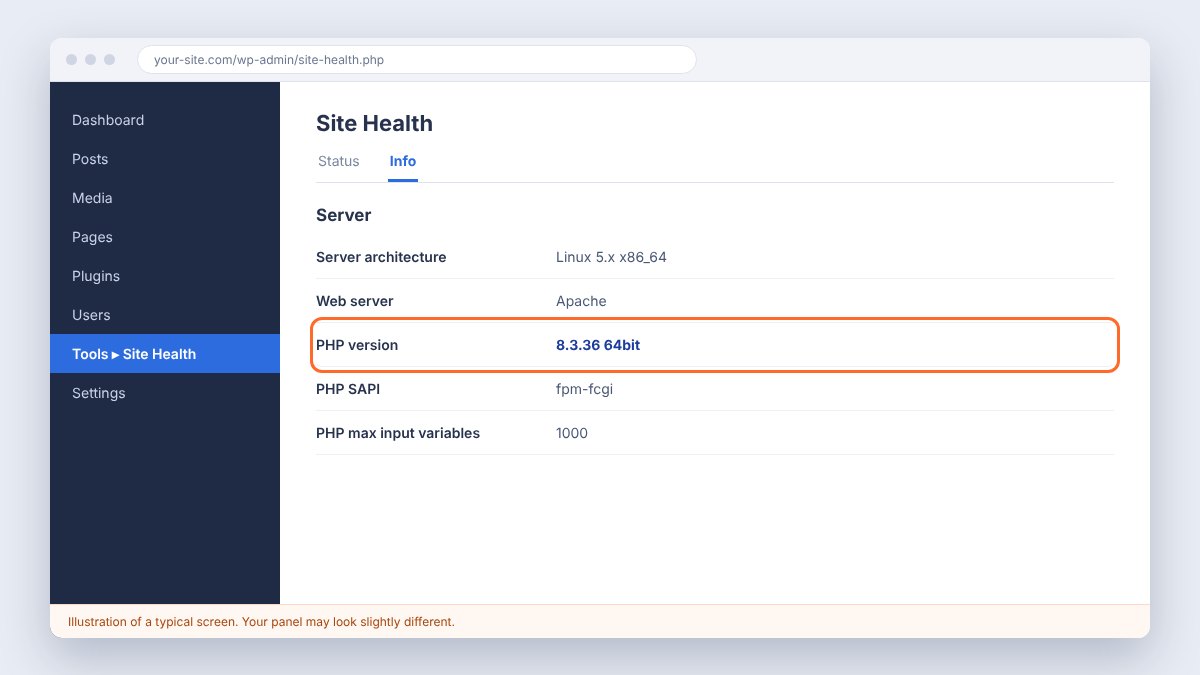
Method A: WordPress Site Health (easiest)
- Log in to your WordPress dashboard.
- Click Tools, then Site Health.
- Open the Info tab and expand Server.
- Read the line PHP version. Write it down, for example 8.3.30.
Method B: Your hosting control panel
Most hosts show the PHP branch (such as 8.3) in the control panel. Step 3 shows where for each host. The panel often shows only the branch. To see the exact release number (for example 8.3.36), use Method A or Method C.
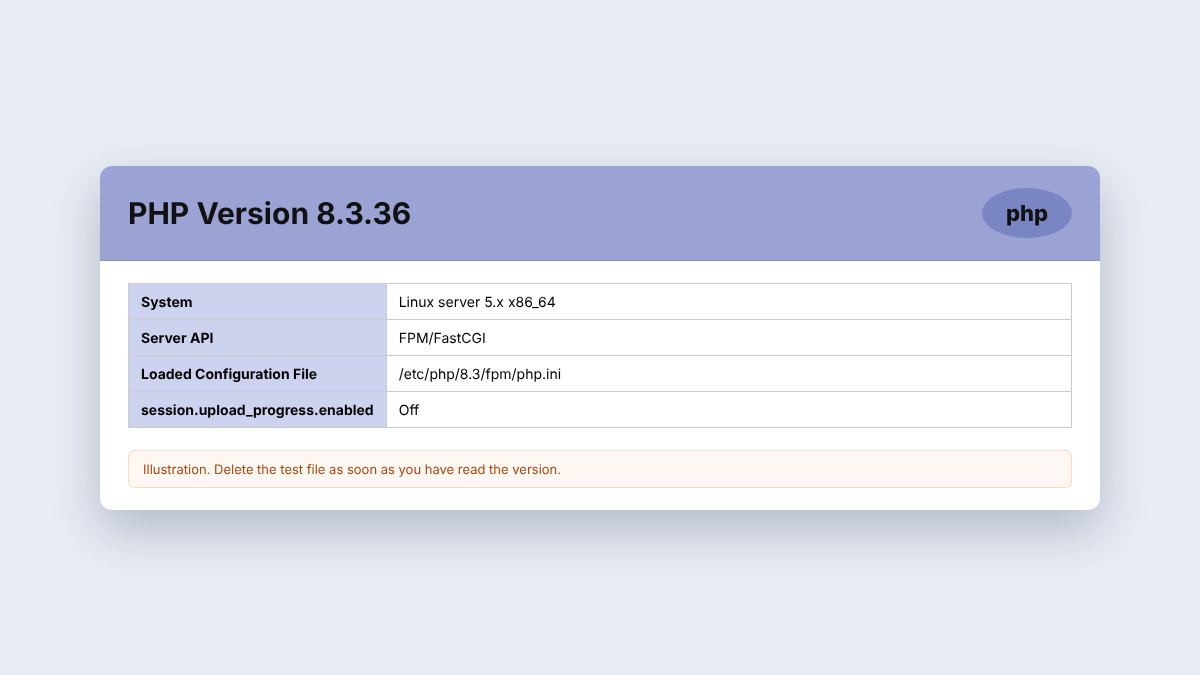
Method C: A temporary “phpinfo” file
- Open your hosting File Manager and go to the folder where your website lives (often
public_html). - Create a new file named
check-php.phpwith this single line inside:<?php phpinfo(); - Visit
yourwebsite.com/check-php.phpin your browser. The first line shows “PHP Version”. - Delete the file immediately. It reveals details attackers love.
On servers you manage yourself, typing php -v may show a different PHP from the one that serves your website. Always confirm with Method A or C, which show what the website itself is using.
Step 2: Back up your website first
A backup takes a few minutes and saves you if an update causes a problem.
- Use your host’s backup tool (most have one-click backups) or a plugin such as UpdraftPlus.
- Download a copy of your files and your database to your computer.
- If your host offers a staging site, test the PHP update there first (GoDaddy and Cloudways both recommend this).
Step 3: Update PHP on your hosting
Find your host below. If yours is not listed, see “Other hosts” at the end of this step. The screenshots are illustrations of the typical screen, so your panel may look a little different, but the menu names match the host’s own instructions.
Most control panels let you pick a branch such as 8.3 or 8.4. Your host then keeps that branch up to date (for example to 8.3.36). After you switch, run Step 1 again to confirm the exact number. If it still shows an older release than the table above, message your host’s support and ask when they will apply the security update.
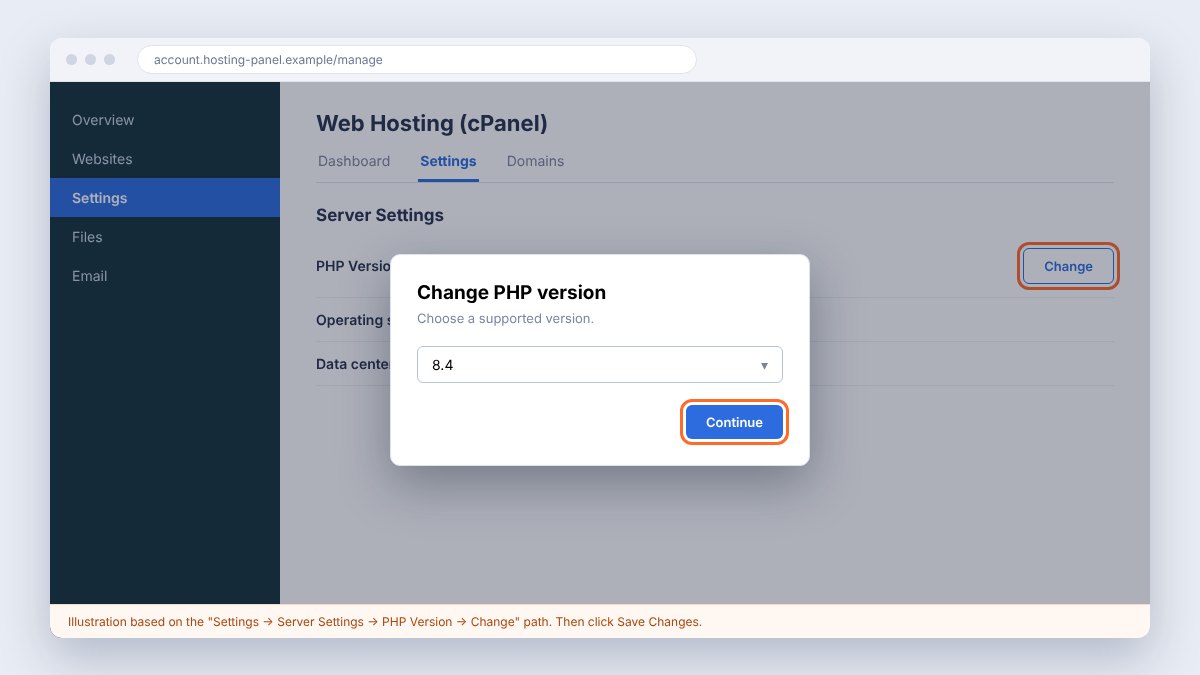
GoDaddy: Web Hosting (cPanel)
- Go to your GoDaddy My Products page.
- Under Web Hosting, next to your cPanel account, click Manage.
- Open the Settings tab.
- In Server Settings, click Change next to PHP Version.
- Choose a newer version (8.3 or 8.4 is a good choice), click Continue, then Save Changes.
- Open your website and click around. If something breaks, repeat the steps and pick your previous version to roll back.
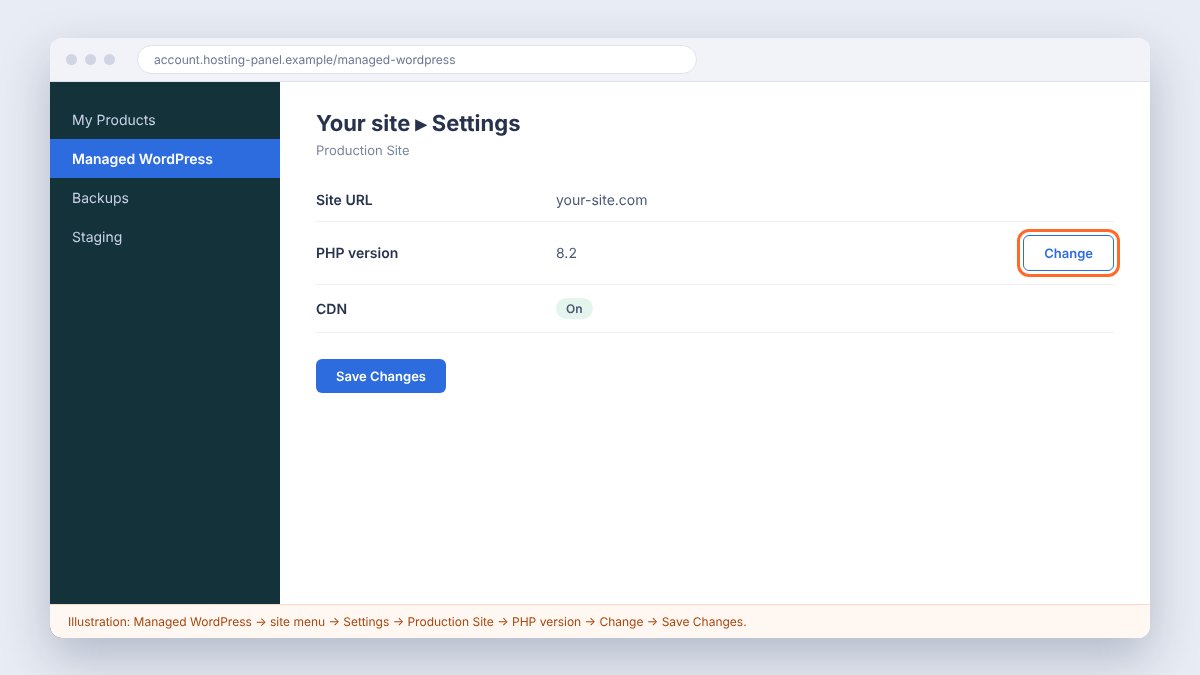
GoDaddy: Managed WordPress
- Go to My Products and click Manage All next to Managed Hosting for WordPress.
- Find your site, open its menu (the small icon) and choose Settings.
- Under Production Site, click Change beside PHP version.
- Pick the newer version and click Save Changes.
- Confirm in WordPress: Tools → Site Health → Info → Server.
Hostinger (hPanel)
- Log in to hPanel and open Websites.
- Click Dashboard next to your website.
- In the left sidebar click PHP Configuration.
- Choose a newer PHP version from the list (Hostinger offers 8.2 up to 8.5).
- Click Update. The change usually takes a couple of minutes.
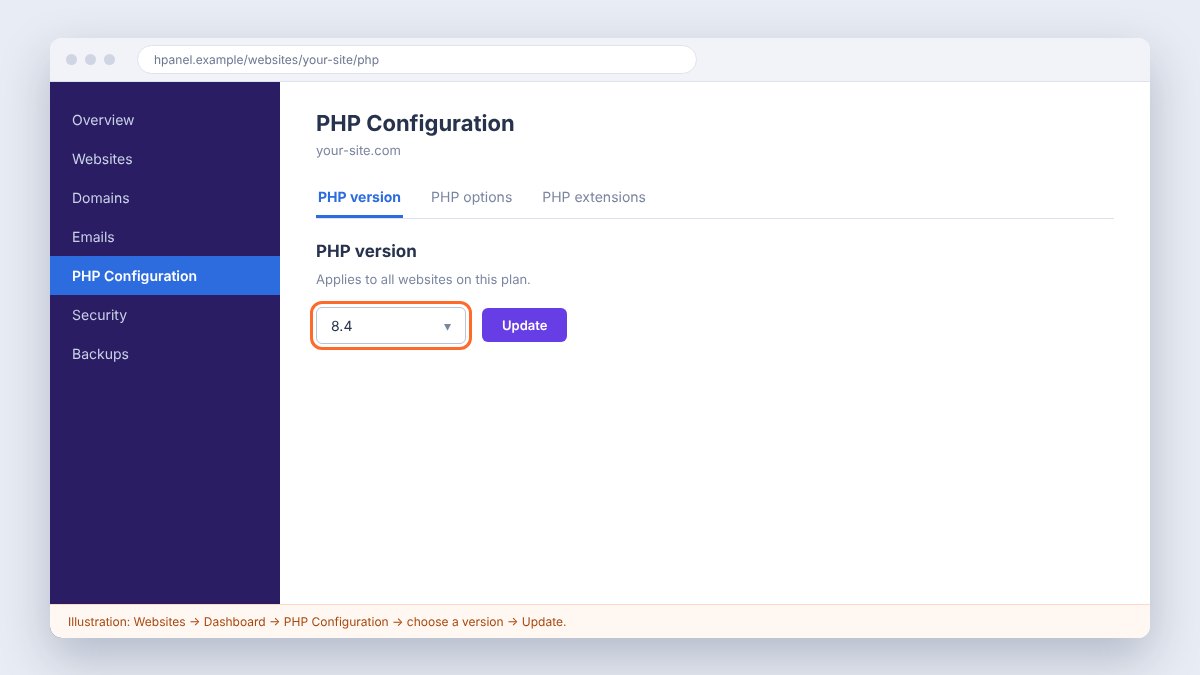
Good to know: on Hostinger the choice applies to every website on that hosting plan. Existing sites can be moved up but not back down, apart from within the same login session, so test a new version carefully. Versions below 8.2 are no longer offered there.
Bluehost
- Sign in to the Bluehost portal and open Hosting, then My Plans.
- Click the cPanel button. cPanel opens in a new tab.
- In the Software section, click MultiPHP Manager.
- Tick the box next to your domain.
- Open the PHP Version drop-down at the top right, choose a newer version and click Apply.
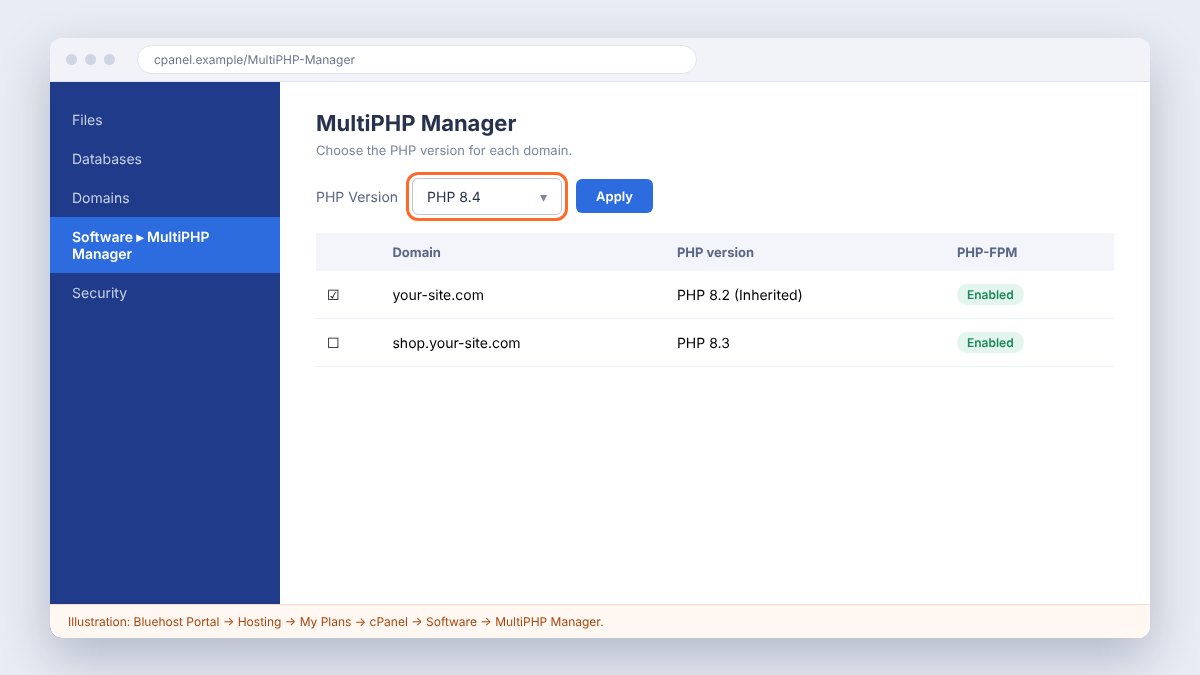
“Inherited” next to a domain means it follows the server’s default PHP version.
Namecheap (shared hosting)
- Log in to cPanel.
- Click Select PHP Version. It is in the Exclusive for Namecheap Customers section, or under Software on some servers.
- Open the Current PHP version drop-down, choose a newer version and click Apply.
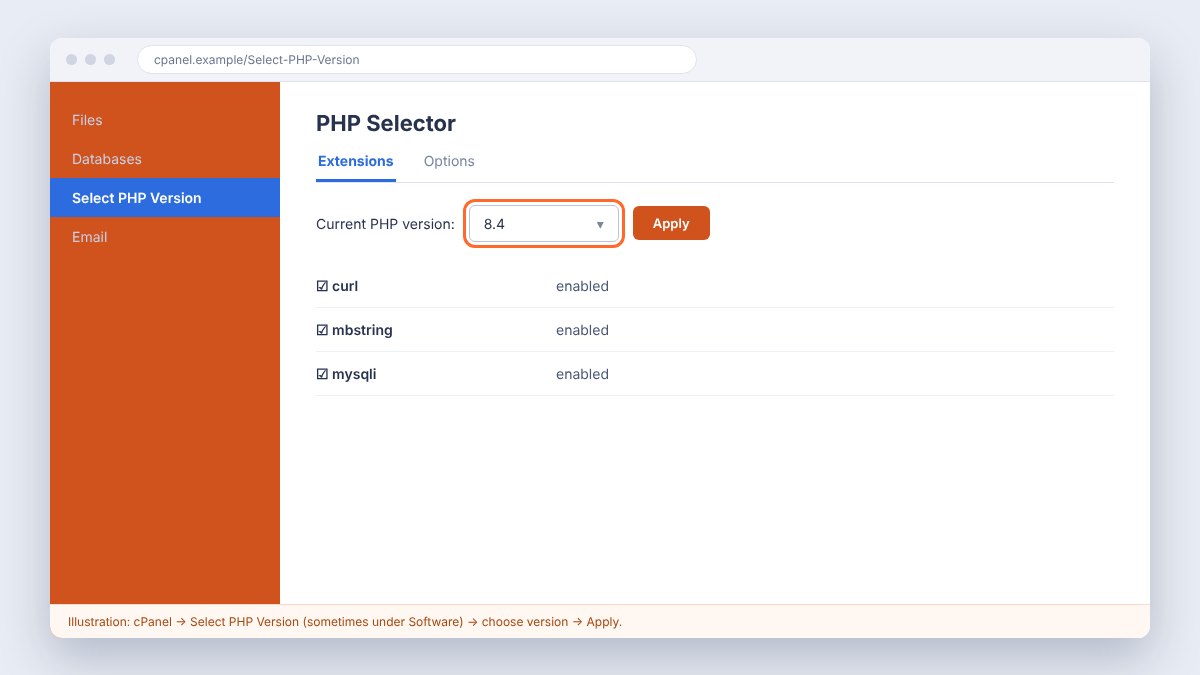
For very old PHP versions (below 7.0), Namecheap asks you to contact their support.
SiteGround
- Go to the Websites tab in your SiteGround account and click Site Tools for your site.
- Open Devs → PHP Manager.
- On the PHP Version tab, click the pencil icon (“Change PHP version”).
- Choose Managed PHP and click Confirm.
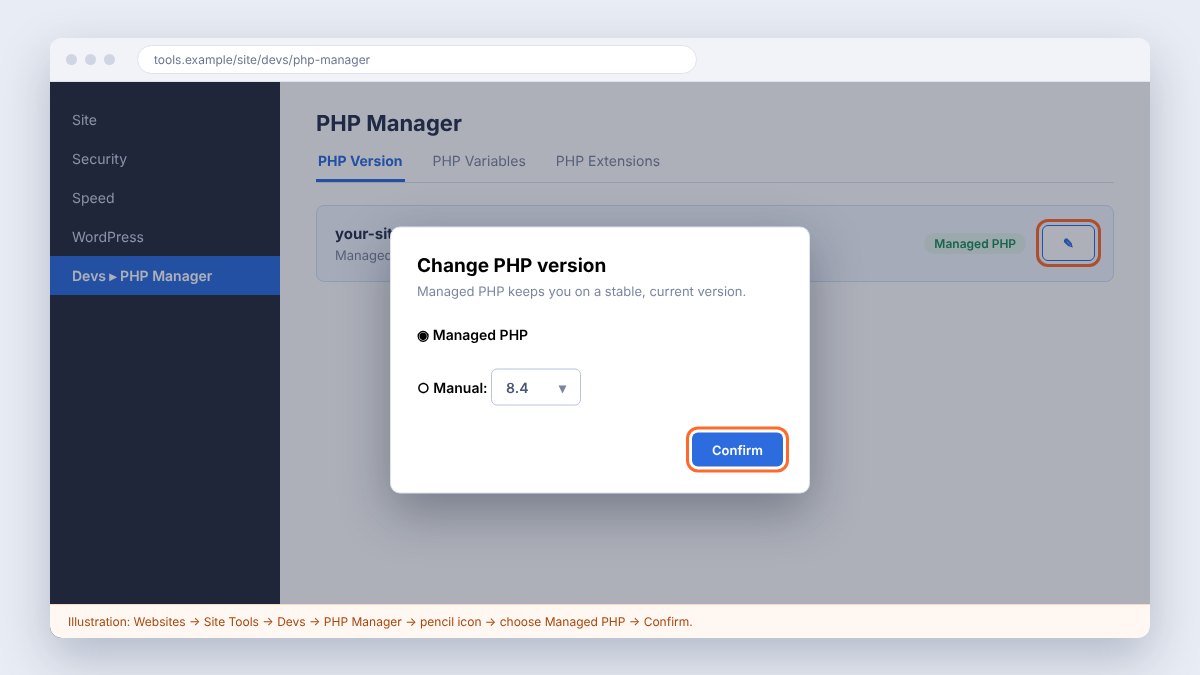
Managed PHP means SiteGround moves your site to newer, stable PHP versions for you. If you pick a manual version, SiteGround will not update it automatically, so you must keep it current yourself.
Cloudways
- Click Flexible in the left menu, then the Applications tab, and select your application.
- Click Application Settings, then the PHP Settings tab. The current version is shown here.
- Click the edit icon next to PHP Version.
- Choose a newer version in the pop-up and click Proceed. PHP restarts, so your site may be unavailable for a few seconds.
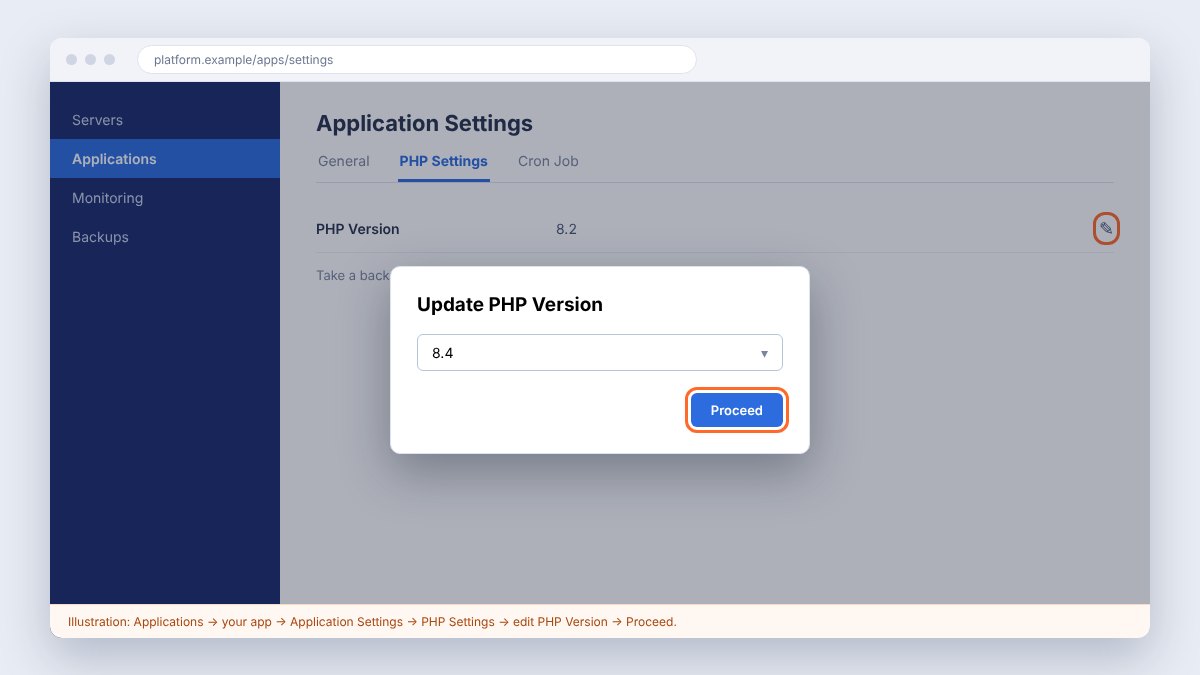
Cloudways says per-application PHP selection is currently in public preview and limited to newly launched servers, so on an older server you may need to use the server-level settings or contact their support.
Amazon Web Services (AWS)
AWS gives you servers rather than a simple control panel, so what you do depends on the service you use.
AWS Elastic Beanstalk
- Open the Elastic Beanstalk console and select your environment.
- Find the Platform section and choose the option to change or update the platform version.
- Pick the newest PHP platform for your branch. AWS’s current PHP platforms (version 4.13.13, listed from 22 October 2026) ship PHP 8.5.12, 8.4.27, 8.3.36 and 8.2.35, which are the fixed releases.
- Apply the change, wait for the environment to restart and run Step 1 to confirm.
Amazon Lightsail (including WordPress images) and EC2
These are ordinary Linux virtual servers, so you update PHP yourself. AWS staff on the re:Post forum suggest two ways: create a new instance from a newer WordPress image and move your site over (the cleaner method), or update PHP in place over SSH. Before either, take a snapshot of the instance so you can undo your changes.
- Take a snapshot of your instance in the AWS console.
- Connect with SSH (the console has a browser-based connect button).
- Run the update commands shown below for your Linux type.
- Restart PHP and the web server, then repeat Step 1.
# Amazon Linux 2023 and other Red Hat-style systems
sudo dnf upgrade --refresh

# Ubuntu or Debian
sudo apt update && sudo apt upgrade

# Restart PHP and the web server (service names vary: php8.4-fpm, httpd, nginx...)
sudo systemctl restart php8.3-fpm apache2

# Check the result
php -v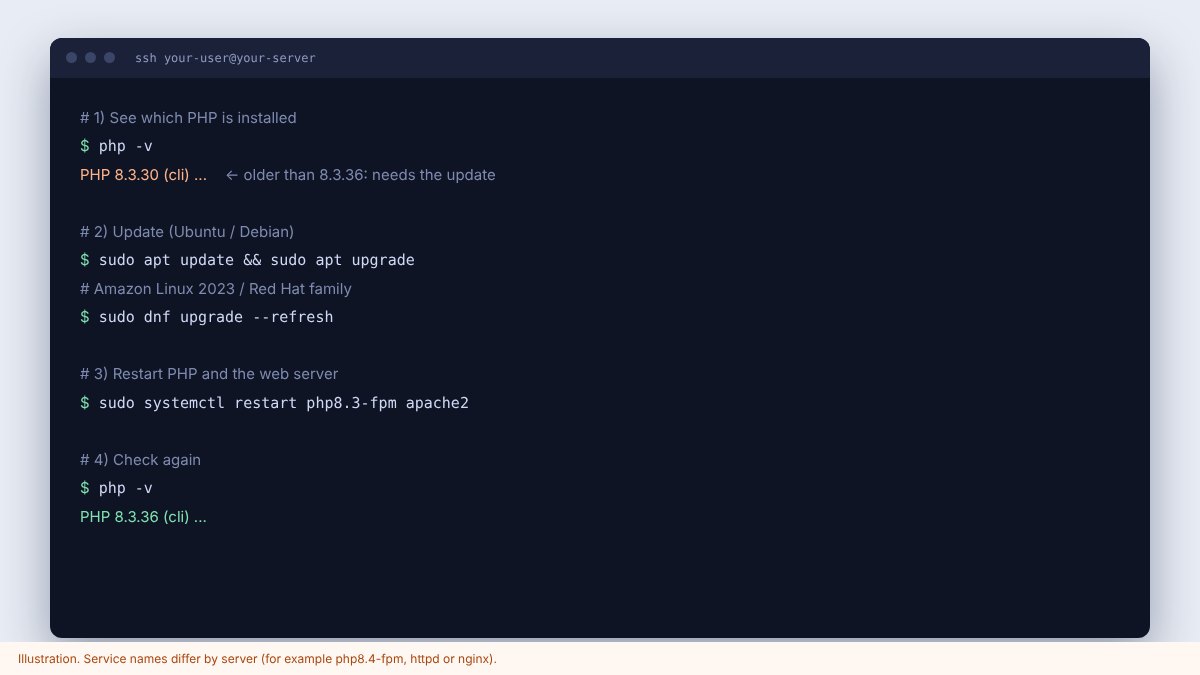
Some ready-made images keep their own copy of PHP in a separate folder, so php -v may not match what the website uses. Always confirm with Step 1, Method A or C. If the version is still old after updating, the quickest safe route is a new instance from a current image.
Your own VPS or dedicated server (DigitalOcean, Linode, Vultr, and similar)
Follow the same commands as in the AWS server section. Use the update command for your Linux type, restart PHP and your web server, then check the version. If you installed PHP from a third-party repository, update from that repository, and read your provider’s security notice because a fixed build may keep an older-looking number.
Managed WordPress hosts and website builders
- Managed WordPress hosts (for example WP Engine, Kinsta and similar) usually patch PHP for you. Open your dashboard’s site settings, look for the PHP version, and ask support to confirm the fixed release number. I have not verified each of these panels, so check your host’s own guide for exact clicks.
- Wix, Shopify and Squarespace do not run your own PHP, so there is nothing for you to update. The company handles it.
Other hosts
Look for a menu called PHP version, MultiPHP Manager, Select PHP Version, PHP Configuration or Software. If you cannot find it, search “change PHP version” with your host’s name, or send your host’s support this message:
Hello, I want to protect my website from the critical PHP vulnerabilities
CVE-2026-109618 and CVE-2026-109619.
Please tell me which exact PHP release my account runs, and either update it to
the fixed release (8.5.12, 8.4.27, 8.3.36 or 8.2.35 or newer) or tell me when you will.
My domain is: yourwebsite.com
Step 4: If you cannot update today, reduce the risk
Updating is the only complete fix. These temporary steps only reduce the risk until you can update, and they do not replace it.
- Ask your host to switch off “session upload progress” (the setting
session.upload_progress.enabled=0) and to restart PHP. This must be set by the server administrator. Setting it from inside your site or in a.user.inifile does not work. - On PHP 8.5 only, also ask them to set
fatal_error_backtraces=0. - Put a firewall in front of the site, such as Cloudflare. Cloudflare has added protection rules, but they only cover traffic that goes through Cloudflare, and attackers are already trying to get around them.
- If you cannot update or protect the site, the UK NCSC advises taking it offline until it is fixed. For a small business site, a few hours offline is better than a hacked site.
Experts also describe more technical limits (for example memory and upload sizes). These can break your site or cause other problems, so ask your host or a developer to apply them rather than guessing.
Step 5: Check whether your site was already attacked
Attackers started trying before the fix was public. Even after you update, a backdoor planted earlier stays behind. Look for these warning signs:
- A new administrator user that you did not create (WordPress: Users → All Users).
- Unknown .php files in folders that should only hold images, such as
wp-content/uploads, or files with random names in your main folder. - Pages with spam links, strange redirects to other sites, or a warning in Google search or your browser.
- A sudden rise in server load, email sent from your server, or a warning email from your host.
- Changed files: in WordPress, a scanner plugin such as Wordfence or Sucuri can compare your core files with the originals and list differences.
If you find anything suspicious:
- Put the site in maintenance mode or take it offline.
- Change every password: hosting, FTP, database, WordPress admins and email. Also replace API keys and payment keys, because memory can leak them.
- Restore a clean backup from before mid-October 2026 if you can, then update PHP and everything else immediately.
- Ask a security professional to clean the site if you are not sure. A half-cleaned site often gets re-infected.
Our guide on WordPress malware removal explains cleanup in more detail.
Step 6: Stay protected from now on
- Turn on automatic updates for WordPress, plugins and themes, and use your host’s managed PHP option if it has one (SiteGround calls it Managed PHP).
- Run a supported PHP version only. Versions 8.1 and older no longer get regular fixes from the PHP project.
- Keep daily backups stored away from your server.
- Add a web application firewall and a security plugin, and use strong, unique passwords with two-factor login.
- Remove plugins and themes you do not use. Every extra one is another door.
- Read our website maintenance guide if you would rather have someone handle this each month.
What if my site breaks after the update?
- White screen or error: update your theme and plugins to their latest versions. Old ones are the usual cause on a newer PHP.
- Roll back for a short time: GoDaddy lets you pick the previous version again. Hostinger limits downgrades, so check first. A rollback is only a short-term measure, because the old version is exposed.
- Find the cause: turn on debug logging or read your host’s error log. The message normally names the plugin.
- Replace the outdated plugin or ask a developer to update the old code. A site that only works on old PHP is a risk you should fix.
Need urgent help? Get in touch
If your site is on an old PHP version, shows signs of a hack, or you simply do not want to risk breaking it, send us the details. We can check your PHP version, update it safely, test the site and clean any damage.
Prism Software
Tell us about your site and we will reply as soon as we can.
- Phone+91 9373101776
- Emailprismsoft@gmail.com
- Office13 STP Link Road Sadar, India
- Book a callcalendly.com/prismsoft/new-meeting
Urgent help form
Sources
- Qualys: PHP2Shell, how to find, mitigate and patch
- Tenable: PHP2Shell frequently asked questions
- Palo Alto Networks Unit 42: threat brief
- UK NCSC: critical security issue affecting PHP
- AWS Elastic Beanstalk: PHP platform history
- AWS re:Post: updating PHP on Lightsail
- GoDaddy: change the PHP version (cPanel hosting)
- GoDaddy: change the PHP version (Managed WordPress)
- Hostinger: change the PHP version
- Bluehost: MultiPHP Manager
- Namecheap: change the PHP version on shared servers
- SiteGround: Managed PHP
- Cloudways: change the PHP version for an application
This article was written on 23 October 2026 from the sources above. The situation is changing quickly, so check your host’s security notices and the PHP project’s announcements for updates. Screenshots are illustrations of typical screens, not live captures, and menu positions can change.
Key takeaways
Frequently asked questions
What is the PHP2Shell vulnerability?+
PHP2Shell is the nickname for two critical flaws, CVE-2026-109618 and CVE-2026-109619, in how PHP handles memory. They can allow an attacker with no login to run code on a server or read secrets from its memory. Both are rated 9.2 out of 10.
How do I check my PHP version?+
In WordPress go to Tools, Site Health, Info and open Server. You can also read it in your hosting control panel or from a temporary phpinfo file, which you must delete straight afterwards.
Which PHP version is safe?+
PHP 8.5.12, 8.4.27, 8.3.36 and 8.2.35, or any newer release in those branches. PHP 8.1 and older have no official fix, so upgrade to a supported branch.
Will updating PHP break my website?+
It can, mostly because of old plugins or themes. Back up first, test on a staging site if you have one, and update your plugins and theme before or right after the PHP change.
Can I fix it if I am not a developer?+
Yes, in most cases. On shared and managed hosting you change the PHP version from the control panel in a few clicks. If it breaks or you suspect a hack, ask for help.
Turn the next decision into forward progress.
Bring us your goals, constraints and questions. We’ll help you identify the clearest practical next step.
Get a free estimate